Recently I found that I can use Google Colab in VS Code, which is very convenient. In this post, I will show how to do it.
Install Google Colab extension
First, you need to install the Google Colab extension for VS Code.
You can find the extension by searching the Extensions view in VS Code for “Google Colab” and then install it, as below:
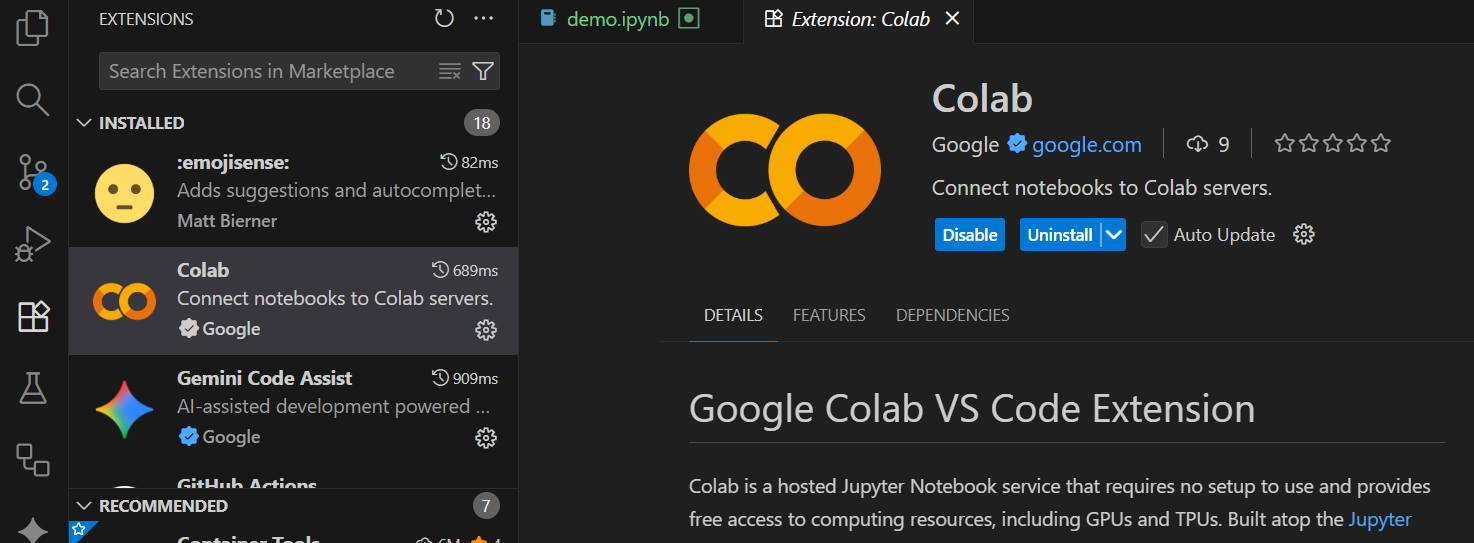
Collect to Colab
Restart VS Code after installing the extension, and then open a Jupyter notebook file (.ipynb).
And try to select a kernel by clicking the kernel name in the top right corner, as below:
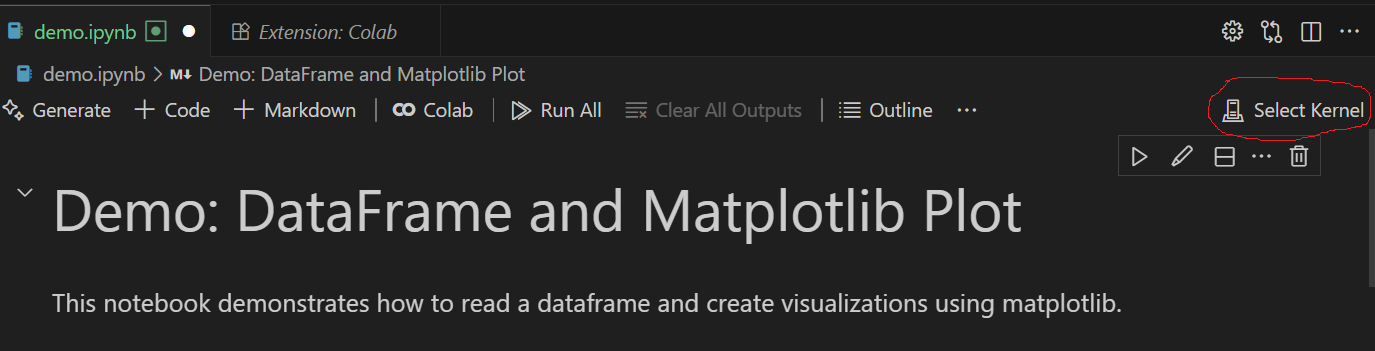
Next choose ‘Colab’ and selet ‘Auto Connect’ or choose to create a new GPU/TPU Colab server as shown in the screenshot:
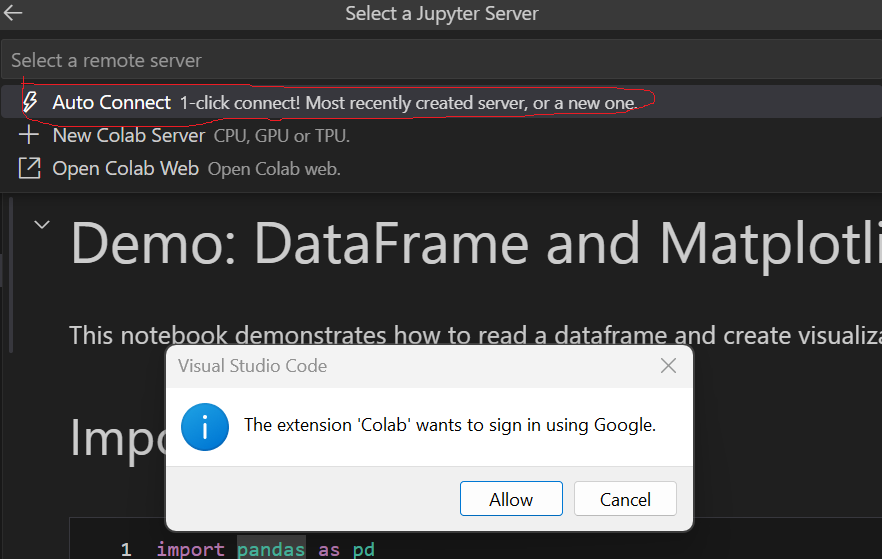
And you will be prompted to sign in using Google, choose Allow to proceed, and you will see following screens:
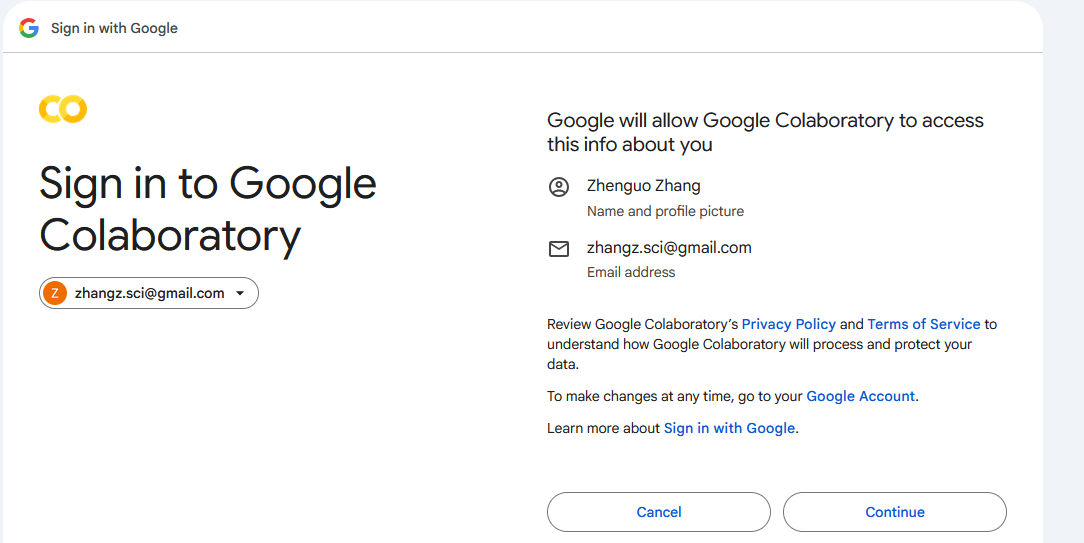
Follow the instructions and continue, and you will be connected to Colab server. Next, you can start run your code as in Colab website.
Congratulations! You have successfully connected to Google Colab in VS Code. 😄 💪
Last modified on 2025-11-16